Apple mobile phone has the full functionality of a traditional video iPod, which allows not only playing music but also videos. Unfortunately iPhone only support video encoded with MPEG-4 or H.264 format and. M4v,. Mp4 and. Mov. This means that you can simply upload your video to any format and hope that it can be viewed without problems on iPhone. It is necessary to convert your videos compressed with Xvid, Divx codec or another in the correct format that will allow you to include them in iTunes, then synchronize them with your iPhone. For this purpose, however, you will need software that can accept any video input and converts it into. Mp4 and. Mov format. Such applications have a lot of pieces, some of which are free, others paid, who managed to achieve the desired objective, but with a different level of success. It comes to that quick action that compression is done, how well sized picture, what is the quality of the resulting image, etc. After testing a variety of solved programs aimed to make the necessary recoding video files are stopped on a free application that currently deal best with the task ...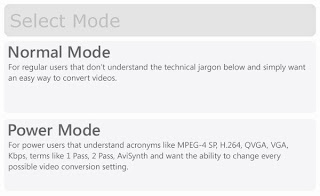 Videora iPhone Converter program is designed to convert video files in formats avi, divx, xvid, flv, x264, vob, mpeg, mkv, wmv, mov and others in the appropriate iPhone. Mp4 and. Mov formats. The program is completely free and is suitable for complete beginners users (Normal Mode), and for people who are aware of the process recompressing and want to have more control (Power Mode). Perhaps the only shortcoming of Videora iPhone Converter is a little more "striped" interface application, which may not suit every user, but more important is that the program has the necessary capabilities and doing a great job.
Normal mode for beginners
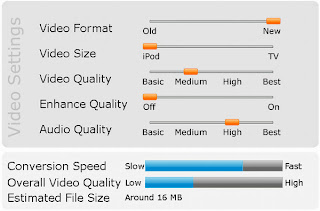 Although this operation is very easy as using the principle step in combination with detailed description and visual guide for each stage, it does not give very clear idea of what is happening. Setting the video compression is performed by several sliders that you move without having to have very clear information about their influence on the parameters of the process recompressing. Nevertheless, it is easy and convenient way to get video, which can metnete directly to iPhone and watch without having to give a job.
Advanced mode for experts
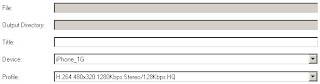 If you have any idea how recompressing video, and what are the basic parameters and how they affect the amount and quality of the resulting video, it is the regime that should prefer. It enables you to run predefined profiles for compression, which are clearly described as parameters (resolution bitreyt audio and video, etc.). Available even if you have the opportunity to create custom profiles for compression in order to achieve the optimum balance between quality, speed of compression and size of the resulting video. In this mode the most appropriate choice among pre-defined profiles appear, but since it does not offer the optimal level of quality will help you with creating a better profile.
Define your own profile
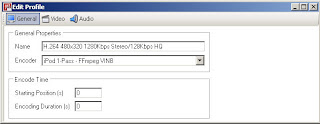 If you have a powerful computer, especially in terms of CPU, because the program can also take advantage of high systems, it is best to use compression doblesPass mode. This will increase the processing time of the video, but will help to achieve optimum image quality even when using lower bitreyt. However, if your computer is not as powerful as you might prefer one pass compression in combination with a slightly higher bitreyt ... To create a profile for optimum quality should open the menu Settings / Encoding and click on the button New Profile. For a profile you can set H.264 480 × 320 1280Kbps Stereo/128Kbps HQ, which aims to describe and enough basic parameters of the profile that will create. For this account you must select one pass compression (iPod 1-Pass - FFmpeg VINB) and bitreyt video of 1280 Kbps (kilobita) as output video resolution should be 480 × 320 (optimal screen for iPhone). Audio is enough to select with AAC-LC bitreyt Kb 128, same like MP3 compression with 160 Kb and is enough for this purpose.
 Videora iPhone Converter program is designed to convert video files in formats avi, divx, xvid, flv, x264, vob, mpeg, mkv, wmv, mov and others in the appropriate iPhone. Mp4 and. Mov formats. The program is completely free and is suitable for complete beginners users (Normal Mode), and for people who are aware of the process recompressing and want to have more control (Power Mode). Perhaps the only shortcoming of Videora iPhone Converter is a little more "striped" interface application, which may not suit every user, but more important is that the program has the necessary capabilities and doing a great job.
Normal mode for beginners
 Although this operation is very easy as using the principle step in combination with detailed description and visual guide for each stage, it does not give very clear idea of what is happening. Setting the video compression is performed by several sliders that you move without having to have very clear information about their influence on the parameters of the process recompressing. Nevertheless, it is easy and convenient way to get video, which can metnete directly to iPhone and watch without having to give a job.
Advanced mode for experts
 If you have any idea how recompressing video, and what are the basic parameters and how they affect the amount and quality of the resulting video, it is the regime that should prefer. It enables you to run predefined profiles for compression, which are clearly described as parameters (resolution bitreyt audio and video, etc.). Available even if you have the opportunity to create custom profiles for compression in order to achieve the optimum balance between quality, speed of compression and size of the resulting video. In this mode the most appropriate choice among pre-defined profiles appear, but since it does not offer the optimal level of quality will help you with creating a better profile.
Define your own profile
 If you have a powerful computer, especially in terms of CPU, because the program can also take advantage of high systems, it is best to use compression doblesPass mode. This will increase the processing time of the video, but will help to achieve optimum image quality even when using lower bitreyt. However, if your computer is not as powerful as you might prefer one pass compression in combination with a slightly higher bitreyt ... To create a profile for optimum quality should open the menu Settings / Encoding and click on the button New Profile. For a profile you can set H.264 480 × 320 1280Kbps Stereo/128Kbps HQ, which aims to describe and enough basic parameters of the profile that will create. For this account you must select one pass compression (iPod 1-Pass - FFmpeg VINB) and bitreyt video of 1280 Kbps (kilobita) as output video resolution should be 480 × 320 (optimal screen for iPhone). Audio is enough to select with AAC-LC bitreyt Kb 128, same like MP3 compression with 160 Kb and is enough for this purpose.
Download Videora iPhone Converter version